You already think like a director. This lesson gives you a fast, free-to-low-cost pipeline to turn that invisible movie in your head into a shareable book trailer — using AI image generation, video tools, and a simple storyboard plan that drives everything.
Writers already think like directors: you build tension, stage reveals, and control what the audience "sees" in their mind. Storyboarding turns that invisible movie into a shareable visual plan — sequential panels that map what the "camera" will see, helping you plan composition, pacing, and key story beats before committing to expensive production.
"Think of your promo video like a recipe: the storyboard is the recipe, and your images are the ingredients."That metaphor is built into Google's own video tools — they literally call your reference images "ingredients."
This workflow gives writers three concrete advantages:
Generate character sheets and location stills so you can write with clearer blocking, wardrobe, tone, and sensory detail — and keep characters visually consistent across every clip.
Turn storyboard stills into short clips and see what actually feels suspenseful, cozy, epic, or eerie on screen — before you commit to anything.
Create social teasers, Kickstarter previews, and newsletter embeds without a production crew — because the plan (storyboard) drives the output.
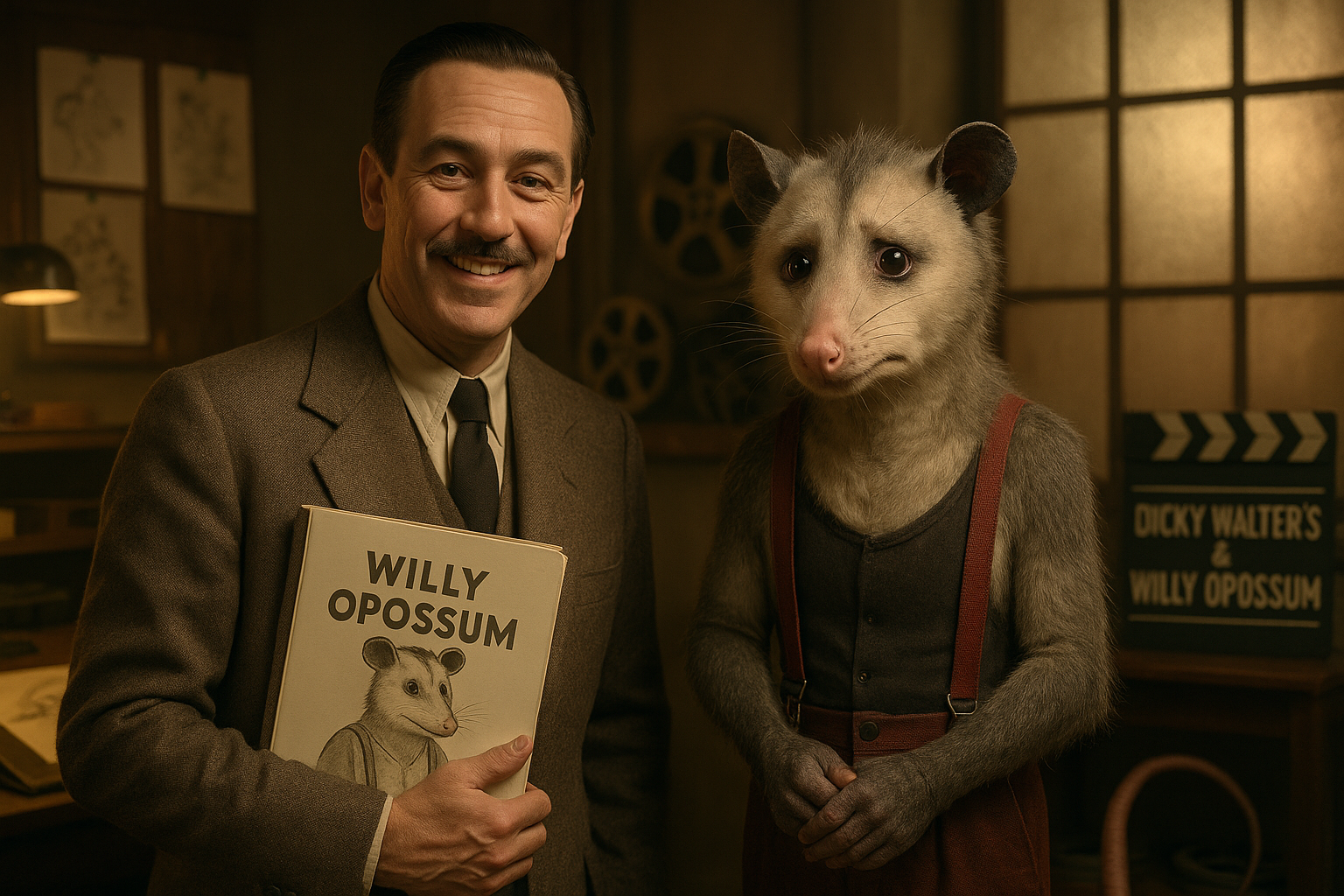
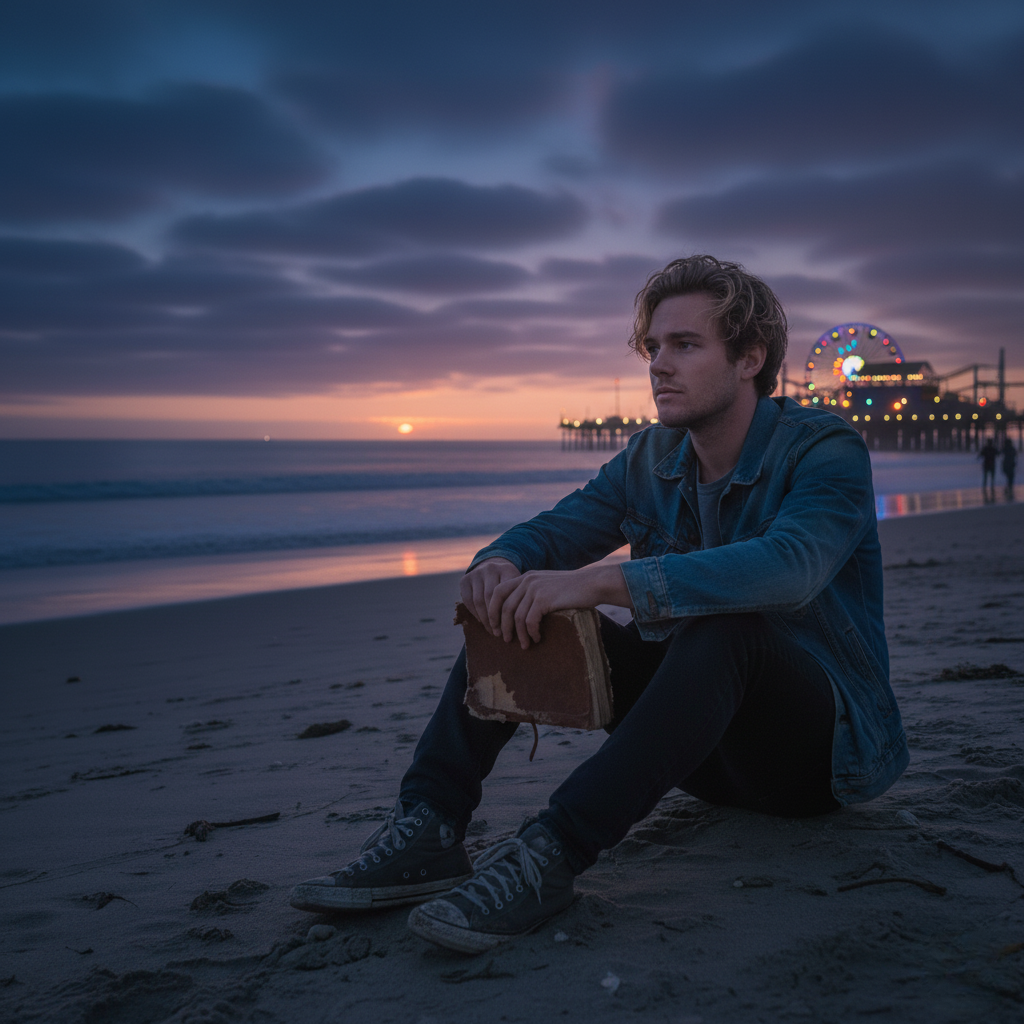
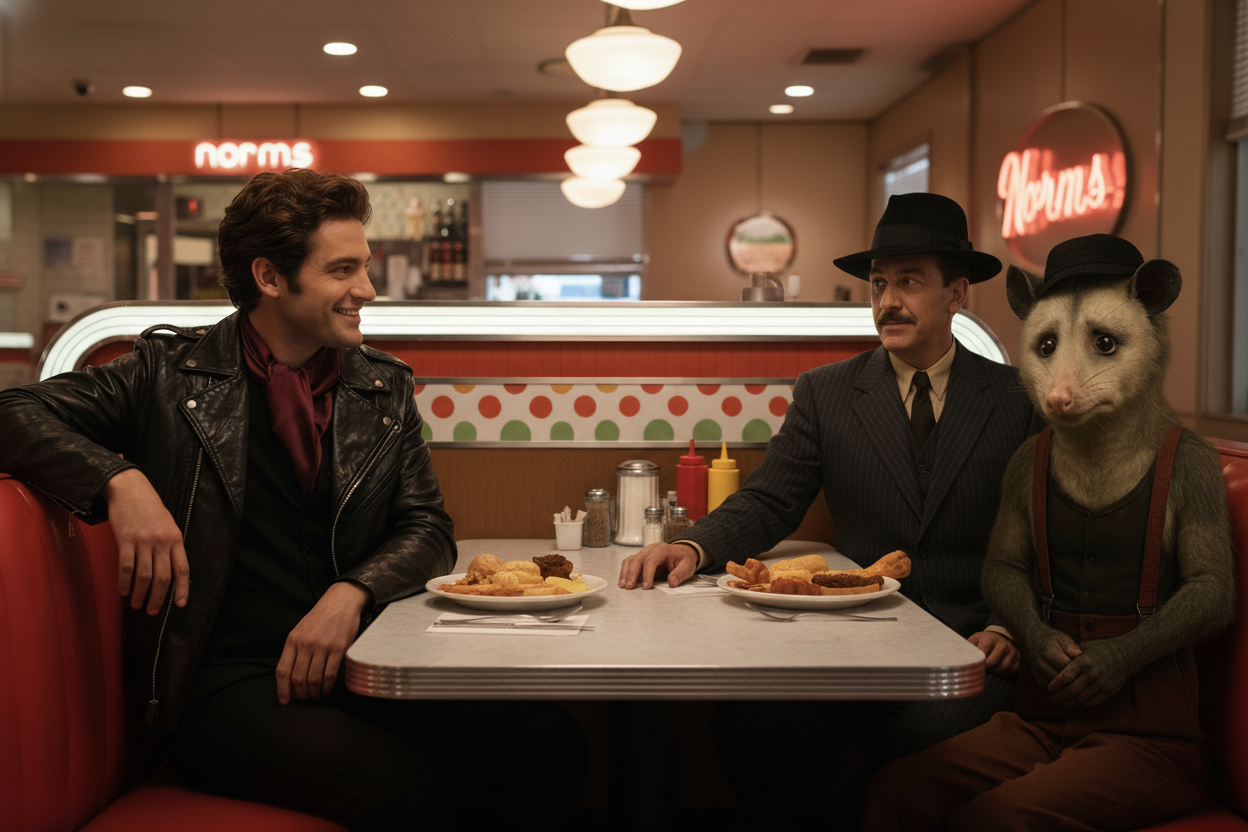
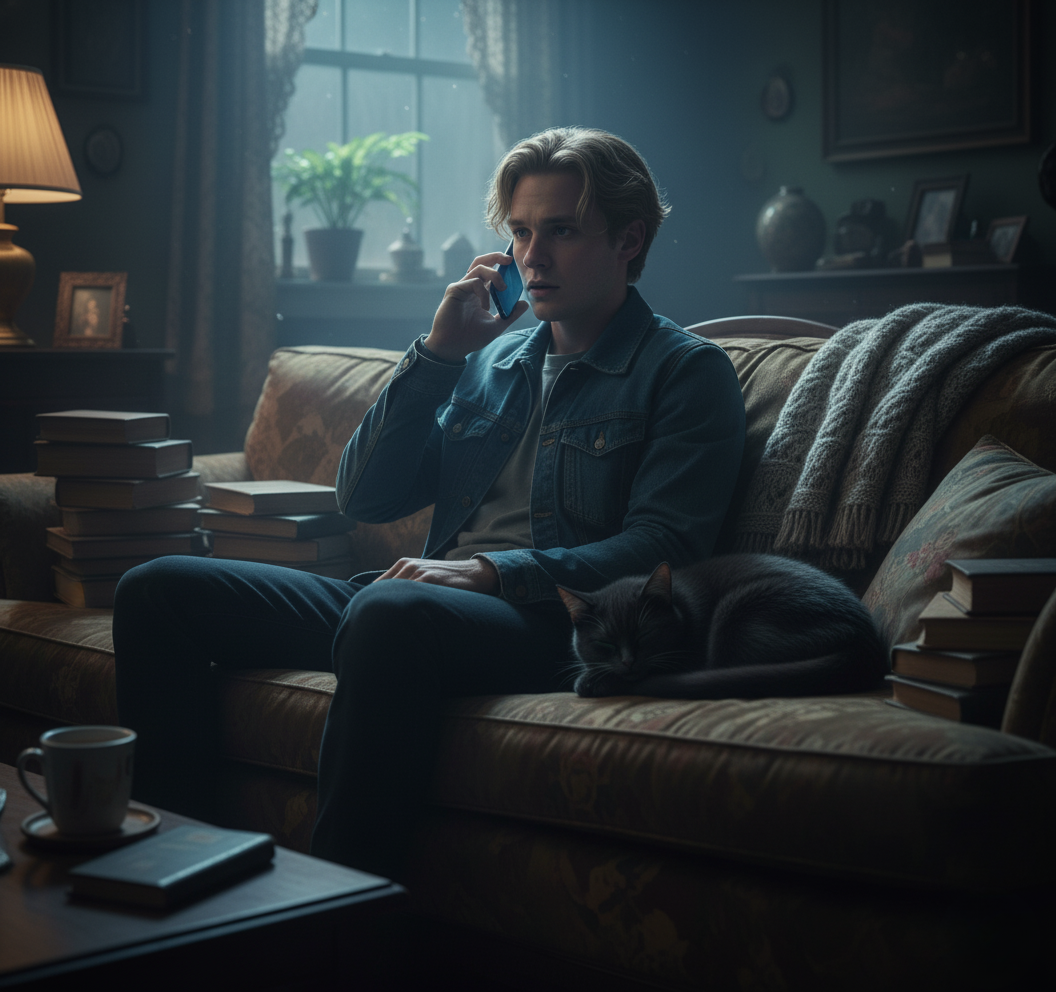
The Vanishing Point is the example project used throughout — you can see the finished promo in the hero above. In Steps 1 and 2 you'll see the storyboard stills and ingredient images that were generated to build it. One project, start to finish.
A writer-friendly promo storyboard usually works best when each panel has a single job: hook → introduce protagonist → show the threat → hint at the world → end on a question. That's a marketing arc, not your book's outline.
Before you touch any AI tool, plan each shot on paper (or in a doc). The template below plugs directly into Google Vids "Generate video," Google Vids "Ingredients to Video," or Google Flow "Ingredients." Copy it into any doc — Notion, Word, Google Docs, whatever you use to write.
Google Vids explicitly recommends prompts that include subject, location, action, camera, lighting, dialogue/sounds, and tone — because those details steer generation. The template fields map directly onto that requirement, so your storyboard is your prompt draft.
Two tools are your primary image generation options. Both are excellent — they have different strengths, and using both gives you more creative flexibility.
ChatGPT's image generation lets you generate images by asking for them in chat, or via View all tools → Create image. You can upload existing images and request edits, including a Select tool for targeted edits to a specific region. Per OpenAI's documentation, the tool excels at detailed prompt following, rendering text, and iterative multi-turn refinement — including transforming uploaded images or using them as visual inspiration.
Instead of generating "a character," generate a character sheet: the same character from multiple views (front/side/back) plus 3–6 expressions. This gives you a stable visual anchor you can reuse as "ingredients" in video generation.
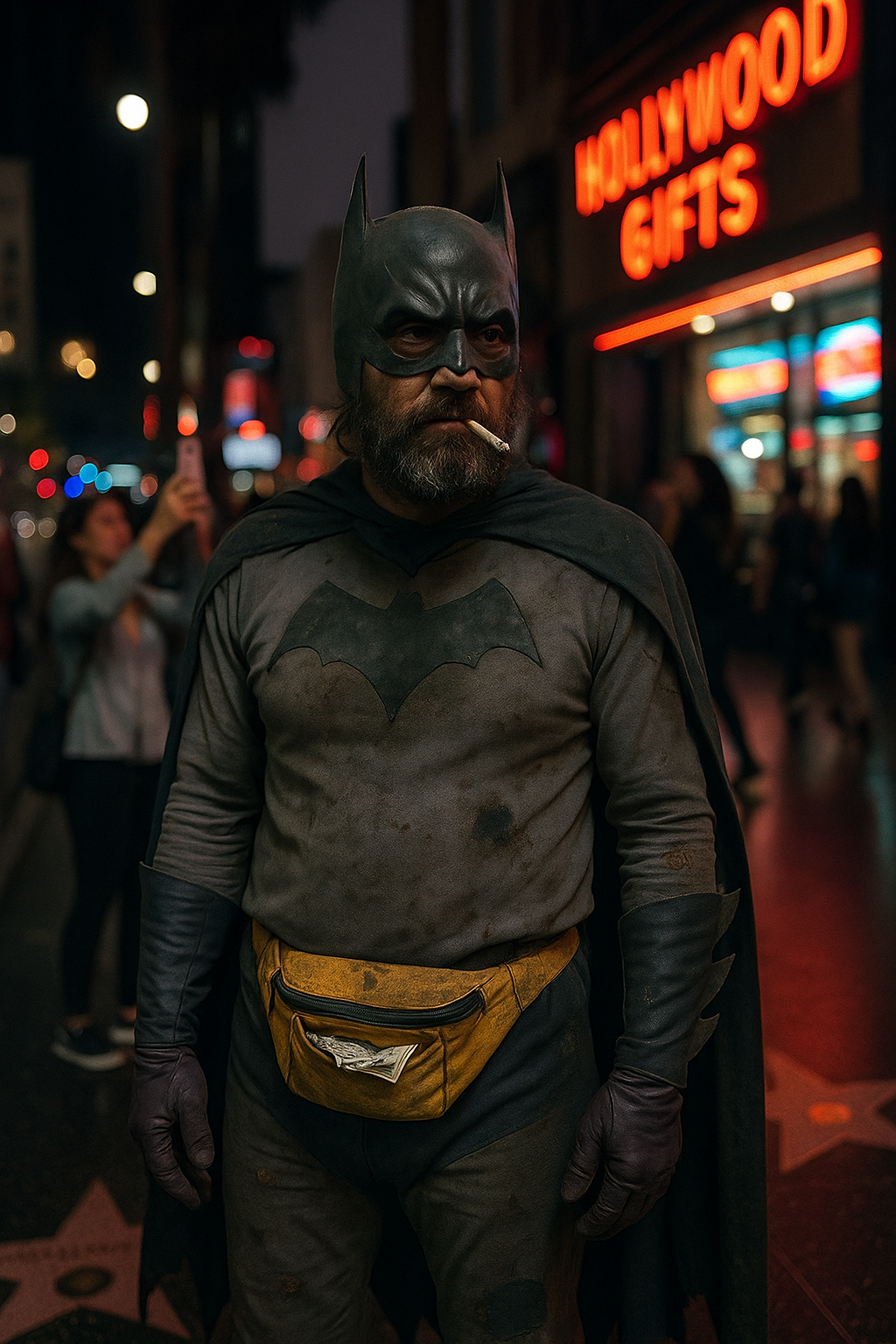
These five stills were generated with ChatGPT Images as part of the Vanishing Point ingredient library. Each one solves a different continuity problem: some lock in key scene mood and setting, while others establish character or prop references that repeat across clips. Together they give every generated clip the same visual world.
Create a CHARACTER SHEET on a clean neutral background. Character: [Name], [age], [gender presentation], [build], [skin tone], [hair], [distinct feature]. Wardrobe: [main outfit] + [one accessory that signals personality]. World/genre: [your genre], grounded and believable. Style: [watercolor storybook / cinematic concept art / graphic novel inks / etc.] Layout: 1) Full body: front view 2) Full body: side view 3) Full body: back view 4) Head/shoulders: 4 expressions (calm, determined, afraid, exhausted) Keep the character design identical across all views. No extra text.
Create an ESTABLISHING SHOT storyboard still. Location: [place], [time period], [season], [weather]. Mood: [lonely / magical / tense / cozy]. Camera: wide shot, eye-level, cinematic composition. Lighting: [golden hour / moonlit / overcast blue hour]. Include 3–5 key environment details that matter to the story (props/signage/terrain). Style: consistent with my character sheet style. No text.
Nano Banana is Gemini's native image generation capability. Per Google's Gemini API documentation, Nano Banana offers multiple model variants including Nano Banana 2 and Nano Banana Pro, and all generated images include a SynthID watermark. For writers (non-developers), access it through the Gemini app: select "Create images" from the tools menu, then choose the model — "Fast" for Nano Banana, "Thinking" for Nano Banana Pro.
Google's February 2026 Nano Banana 2 announcement emphasized capabilities especially relevant to writers storyboarding narratives: subject consistency, precise instruction following, and production-ready specs across aspect ratios and resolutions. Subject consistency is the whole game — if you want a character to look like the same person across multiple storyboard panels, this is what you need.
Open Gemini → Tools → Create images → pick model (Fast or Thinking). Prompt for a character sheet or establishing shot, same as with ChatGPT.
Upload your best "canonical" character portrait. Ask Nano Banana to change only the wardrobe, expression, lighting, or angle — while preserving identity and style.
Google notes that once you hit your Nano Banana Pro limit, you may be automatically switched back to the standard model until limits reset. Lock your most important character sheet early while you have Pro access — and save those reference images locally before you do anything else.
This is where your storyboard becomes a production plan: every storyboard panel becomes one short generated clip, then you stitch them into a promo video. Google Vids runs at vids.new in your browser — no install required.
Per Google's official "Use AI to generate video clips in Google Vids" help page, generated clips are 8 seconds long, 720p, 24fps, in landscape (16:9) or portrait (9:16). Daily limit: up to 10 generated videos per day, resetting at 12 AM PT.
Your storyboard solves the daily limit problem before it starts — because you know in advance which 6–10 shots you need to generate today. This is another reason to storyboard first.
Use when you need a purely atmospheric shot: fog rolling in, a streetlamp flickering, an empty road. Open Vids → select aspect ratio → open the Veo panel → choose "Create from scratch" → enter your prompt.
Use when your storyboard still already "frames" the shot perfectly. Upload a .jpg/.png and animate it into an 8-second clip. Google recommends: high-quality source image, supported aspect ratio, and motion-focused prompting — don't re-describe the still, describe what moves and how.
Use when your promo needs recurring identity: the same protagonist throughout, the same artifact, the same city skyline. Add up to 3 reference images and prompt how to incorporate them for consistent characters/objects across multiple clips.
The original Vids help page noted "Videos with ingredients can only use Landscape (16:9)." However, a January 2026 Google Workspace announcement confirmed portrait-sized clips are now supported in Ingredients to Video (Veo 3.1), rolling out from January 13, 2026. Safest phrasing when teaching live: check your UI — portrait ingredients may depend on your account's rollout status.
Vids session history disappears when you close the tab. Copy your prompts and settings into your storyboard doc as you iterate. Your storyboard doc is your permanent record; Vids is your temporary workspace.
If another generator gives you a better shot, export it and import it into Vids for assembly. Google Vids supports adding video clips via the Upload side panel from Drive/Photos and supports common formats including MP4.
Seedance 1.0 (ByteDance) supports multi-shot video generation from text and image, producing 1080p videos. Seedance 2.0 expands to multimodal inputs (text/image/audio/video references) and "director-level control." The practical workflow: create fancier or longer footage in Seedance, then import into Google Vids as the downstream editor and assembler.
If you want a more storyboard-native experience, Google Flow was built for exactly the storyboard-to-scenes workflow — and it treats "ingredients" as a first-class concept. Access it at labs.google.
Per Google Flow's official "Create videos in Flow" guide, you can generate from:
Describe the scene in detail. Flow generates a clip from your description alone.
Your character sheet, hero props, signature locations — drag and drop reference images to repeat them for continuity across clips.
Use your storyboard panels as start and end images. Flow generates the motion between them — storyboard gold.
labs.google → Flow. Describe the scene in detail in the prompt field.
Then optionally add ingredients or frames to guide the generation.
Drag reference images/video, use @ to select uploaded assets, or use the Add button under the prompt. Then describe in your text prompt how the ingredients should be used.
Use clean subject references on plain or segmented backgrounds. Avoid conflicting guidance between text and images. Keep a consistent look across ingredient images.
Per Flow's "Get started" page: Flow requires age verification (18+), is available in supported regions only, requires an eligible subscription, and outputs include SynthID watermarks. Some tiers add visible watermarks to videos made with Veo. Rate limits may kick in after many generations in a day. For teaching: have students storyboard first, then generate only their "must-have" clips during class time.
A promo video becomes a trailer when it has a musical identity, intentional sound design, and (optionally) narration. Here are the tools and the rights conversation you must have with your students.
Per Suno's official guide, you create songs by describing the genre, mood, and lyrics (or no lyrics) using Simple mode, or Custom mode for more control. You can use your own lyrics via Custom mode.
Per Suno's copyright FAQ and Terms of Service: on the free plan, Suno owns the songs and allows non-commercial use only. On Pro or Premier, you own the songs and receive a commercial use license. Per Suno's commercial use definition, paid-plan songs can be monetized and royalties collected — without Suno claiming a share.
Suno warns that even on paid plans, AI-generated songs may not be eligible for copyright protection, especially if 100% AI-generated — "writing the prompt does not constitute creation of the song" under U.S. human-authorship standards. The U.S. Copyright Office similarly concludes that generative AI outputs may be copyrightable only when a human makes sufficient creative determinations, not merely by prompting.
Teach Suno as score sketching: create a mood bed, then consider adding human-authored lyrics, human edits, and clear documentation of your creative contributions if copyright status matters to your project.
ElevenLabs provides three workflows relevant to writers building trailers, per their official product guides:
Paste text, select a voice, adjust settings, generate audio.
Official docs →Describe a sound, set duration, generate (creates four variations), download MP3/WAV from history.
Official docs →Build a timeline-based voiceover project, add/edit voiceover clips and sound effects, export the full mix.
Official docs →Per ElevenLabs' Terms of Service: you must have all necessary rights to what you upload. The Terms describe rights to inputs/outputs and the license you grant to ElevenLabs. Sound Effects Terms cover sublicensing and opt-out controls for SFX outputs — worth reviewing before commercial use.
Per Google Vids' "Add audio" help page: add audio from Drive or upload from your computer via Insert → Uploads. Supported formats include MP3 and WAV. Per-video cap: up to 50 audio objects (music/SFX/voiceovers combined), subject to change. More than enough for a trailer — but worth knowing as a constraint before you build an overly complex session.
Every tool in this workflow touches copyright. The U.S. Copyright Office's official guidance applies to all AI-generated images, audio, and video you create.
Per the Copyright Office's AI policy guidance and NewsNet Issue 1060: generative AI outputs may be copyrightable only when a human determines sufficient expressive elements — including creative selection, arrangement, or modification of the output — not merely by prompting.
Purely prompt-generated images likely have no copyright protection. Human-edited, arranged, or significantly modified outputs may qualify — document your creative decisions.
Free plan: non-commercial only; Suno owns the output. Paid plan: commercial license granted. Neither guarantees copyright protection for 100% AI-generated work.
Include SynthID watermarks. Some tiers add visible watermarks. The assembly and creative selection of clips into a finished promo may strengthen your authorship claim.
Document your creative process: save prompts, note editing decisions, record which elements you modified and how. The more human creative judgment you apply — in selection, arrangement, editing, and combination — the stronger your authorship argument. Use AI as a production tool, not a replacement for your creative decisions.
"The storyboard is the recipe. Your images are the ingredients. The video is the meal — and you're the chef."AI Writers Retreat · Storyboarding & Promo Videos module