Both ChatGPT and Gemini have a Canvas mode — a split-screen workspace where you can draft, revise, and refine directly inside the AI, without the copy-paste loop. This lesson shows writers exactly how to use both.
The standard AI chat interface has a friction problem for writers: you prompt, you get a block of text, you copy it into your document, you spot a problem, you go back to chat to fix it, you copy again. The document you're building lives in a separate window from the AI helping you build it. That context gap adds up.
Canvas mode solves this by giving you a persistent, editable document pane sitting right next to the chat. You're not extracting outputs — you're working inside a shared artifact. Highlight a weak paragraph and ask for a rewrite. Use one-click shortcuts to adjust reading level. Accept or reject inline suggestions. Roll back to a previous version. Export directly to Google Docs or as a Word file. None of this requires leaving the interface.
"Canvas introduces spatial reasoning into the workflow. Users can work on a document the way they would in Google Docs or VS Code, but with an AI collaborator that understands the full context of what's on screen."— WebProNews, on Canvas as a shift in the AI interaction model
OpenAI's Canvas splits the screen into a conversation pane and an editor pane. Launched October 2024. Now free for all users. Available on web, Windows, and macOS.
Google's Canvas launched March 18, 2025. Free for all Gemini users. Available on web at gemini.google.com; mobile via the + icon. Auto-saves everything.
Both platforms independently arrived at the name "Canvas." The concepts are similar — split-screen AI collaboration on a document — but the shortcuts, editing controls, and export options work differently. This lesson covers both so you can use whichever fits your workflow, or switch between them deliberately.
Per OpenAI's official Canvas help page, Canvas is available on the web app, Windows app, and macOS app. Three ways to open it:
ChatGPT opens Canvas automatically when it detects a scenario that benefits from an editor — typically any output over 10 lines, or writing/drafting tasks it recognises as iterative work.
Include "use canvas" anywhere in your prompt, or type a backslash / and select "canvas" from the command menu. You can also say "open a canvas" or "open a coding canvas" to start blank.
Click the + icon next to the input box and select Canvas to open a blank workspace, then paste in a draft you've already written. This is how you bring existing manuscripts into the Canvas workflow.
When Canvas opens, your screen splits into two panes. The Chat Pane (left) is your familiar ChatGPT conversation — type prompts, ask for revisions, see the history of your requests. The Editor Pane (right) holds your document. You can click directly into the text and type, just as you would in any word processor. Both panes stay in sync.
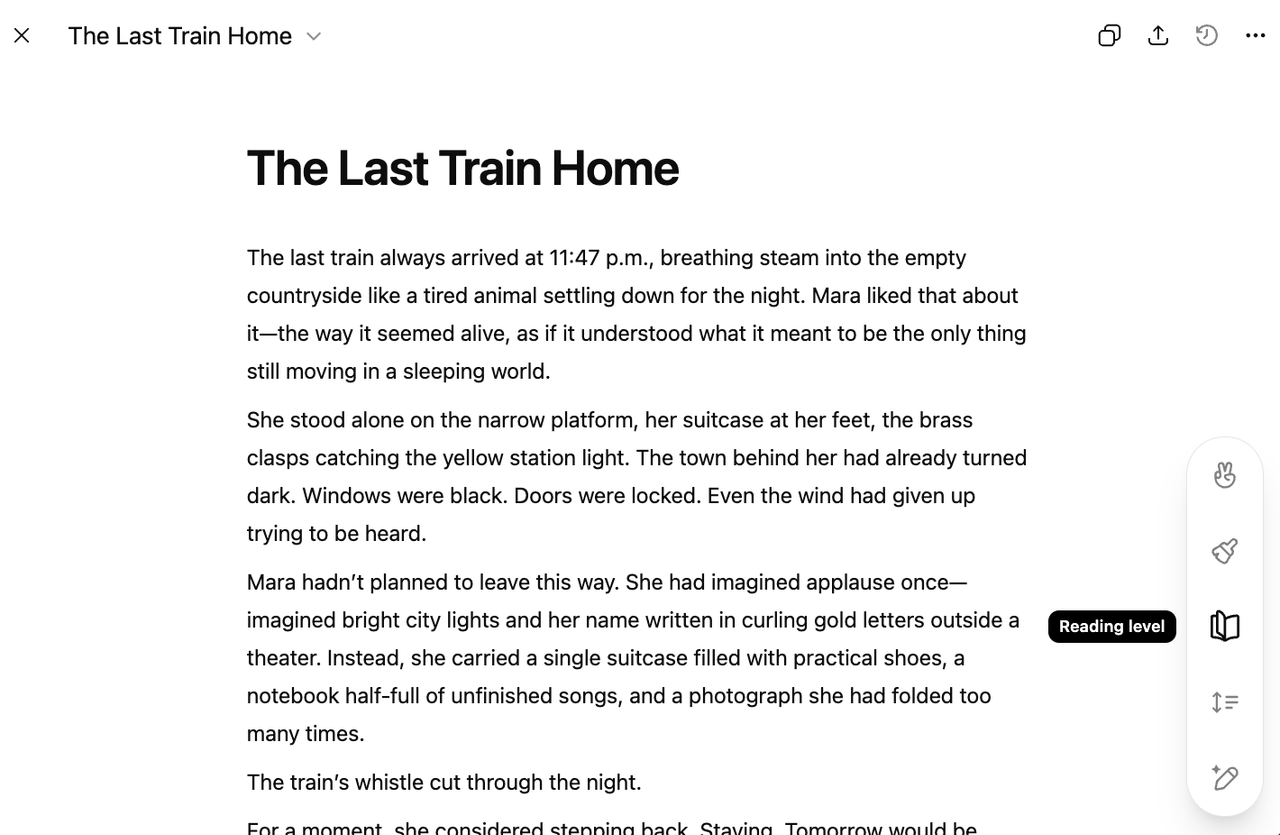
Hover over the shortcuts menu at the bottom-right of the editor. Per OpenAI's official Canvas announcement and the Help Center article, writing shortcuts include:
Select any portion of text in the editor pane. A small input box appears. Type your instruction directly — "make this paragraph punchier," "cut this to two sentences," "rewrite for a sceptical reader," "give me three alternative versions of this opening line." ChatGPT edits only the highlighted section, leaving the rest of the document untouched. This scoped editing is what separates Canvas from standard chat: you're not regenerating the whole piece, you're doing surgery on the sentence that's not working.
Highlight a paragraph → type: "This is too passive. Rewrite it with a stronger, more direct voice — keep the same information but cut the hedging language."
Highlight your opening line → type: "Give me five alternative opening lines. Keep the same stakes but vary the approach — try one question, one statement of fact, one sensory detail, one provocation, one confession."
The top toolbar has back and forward arrows to navigate through every version of your document, plus a Show changes button that highlights additions and deletions — the same track-changes view you'd use in Google Docs or Word. This makes it safe to experiment: try a complete tone overhaul, see if you like it, and roll back to the previous version in one click if you don't.
From the same top toolbar, export as PDF, Markdown (.md), or Word (.docx). The Word export is particularly useful for writers who then take drafts into manuscript formatting workflows. Code projects export to the appropriate language file extension.
Canvas supports basic markdown: bold, italic, H1/H2/H3 headers, bullet points, numbered lists. Per OpenAI's Help Center: "We don't currently offer more advanced formatting options in canvas." Tables, footnotes, and advanced layout are not available — for those, export to Word or Google Docs and finish there.
Per OpenAI's Help Center, Canvas is currently available on Web, Windows, and macOS only. Mobile (iOS, Android) is listed as "coming soon." Use the web app on your phone's browser as a workaround, but full functionality is desktop-first for now.
Per Google's official "Create docs, apps & more with Canvas" help page and the Gemini Canvas product page:
At gemini.google.com, click Canvas in the input bar below the text field, then type your prompt. Or go directly to gemini.google.com/canvas to land in Canvas immediately.
On mobile, tap the + icon and select Canvas. Note: editing text style and formatting is only fully available on the web app on desktop — mobile is view and basic-edit only.
Click Add files with your prompt to upload a document or image. Gemini uses it as source material and opens a Canvas with the draft. Useful for workshopping existing manuscripts or rewriting research notes.
Canvas runs on Gemini 3. The model picker in the prompt bar lets you choose between three modes: Fast (answers quickly — good for most writing tasks), Thinking (solves complex problems — useful for structural rewrites or research-heavy drafts), and Pro (thinks longer, best for advanced tasks — available to paid subscribers). If Canvas isn't showing up, visit gemini.google.com/canvas directly and click Try Canvas.
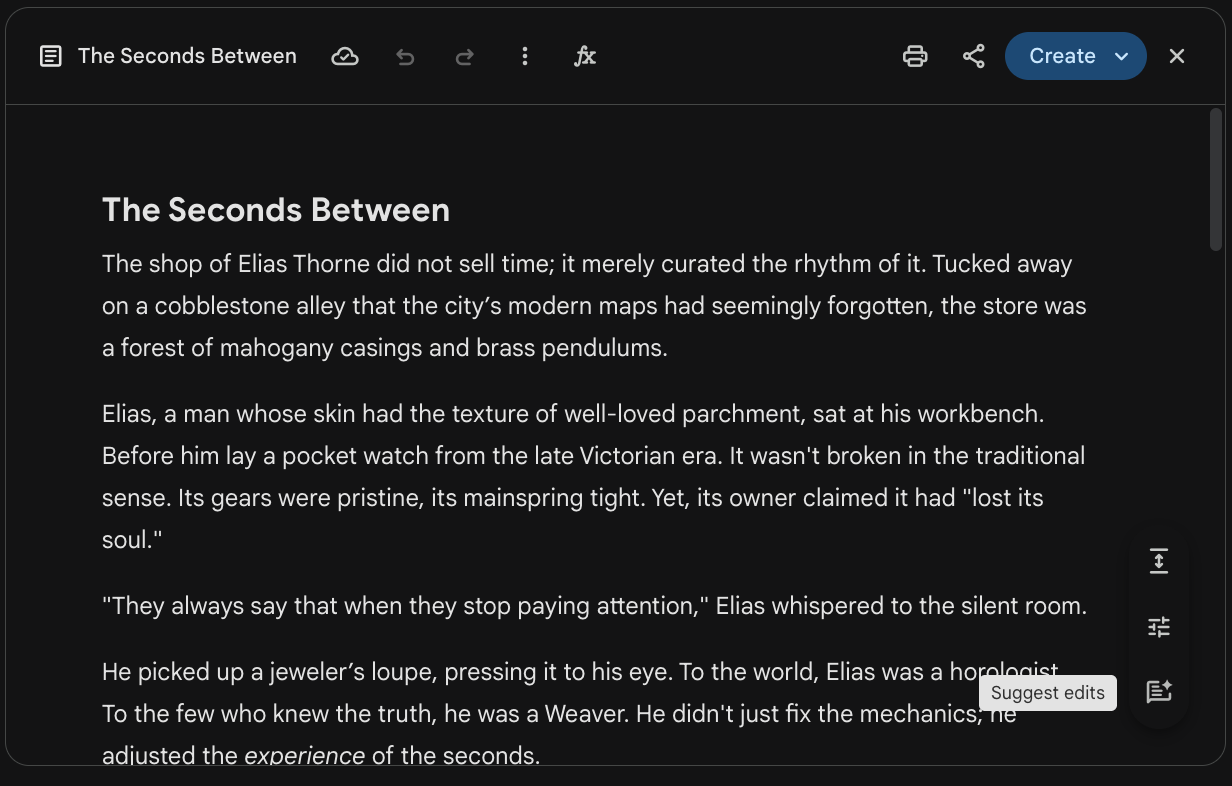
The Gemini Canvas editing controls are accessed from the Canvas panel toolbar on the right. Per Google's official help documentation:
Like ChatGPT Canvas, you can click directly into the Gemini Canvas and type. The toolbar at the top of the Canvas panel offers: bold, italic, bulleted lists, numbered lists. Gemini Canvas also supports LaTeX for mathematical notation — useful for academic or technical writers. All changes auto-save.
Use the Previous Version and Next Version buttons at the top of the Canvas panel to navigate your edit history. This is the same safe experimentation model as ChatGPT — try a complete rewrite of the opening, see if it works, step back if not.
This is where Gemini Canvas diverges most interestingly from ChatGPT Canvas. Once you have a document, click Create at the top-right of the Canvas panel. A dropdown offers:
Per Google's Canvas product page: you can run a Deep Research report and then convert it into an interactive visual, quiz, web page, or audio overview — all inside Canvas. For nonfiction writers and journalists, this means your research and your draft can live in one uninterrupted workflow.
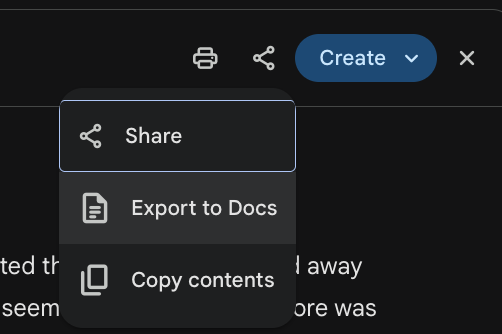
From Google's help documentation: export to Google Docs with one click. You can also copy the contents directly. Shareable public links are available for Canvas apps and web pages — though if you are signed in to a work or school account, link sharing is not available; copy the contents instead.
If you use Gemini through a Google Workspace for Education or Business account, you cannot share public Canvas links. Copy the contents and paste into Google Docs to share with others.
Canvas is most useful when you're working on a piece iteratively — not when you need a quick answer, and not when you need multi-source research. Here's how to use it for the writing tasks writers actually face.
The simplest workflow: describe what you want to write and let Canvas generate a first draft. The key is being specific about your audience, length, tone, and purpose from the start — so you spend iteration time refining, not redirecting.
Write a 600-word personal essay about the first time I realised I was a writer. Audience: literary magazine readers. Tone: reflective, slightly wry. Open with a specific sensory detail, not a statement about writing. Use Canvas.
Draft the opening chapter of a memoir set in rural New Zealand in the 1980s. Third-person limited POV. Protagonist is a 12-year-old girl who has just found her mother's diary. Establish place, mood, and the central dramatic question within 800 words. Use Canvas.
Paste your existing draft into a blank Canvas. Then use targeted prompts on highlighted sections rather than asking for a full rewrite — preserve the parts that are working and fix only what isn't.
[Paste draft] This is a draft of a short story opening. Don't rewrite it — instead, suggest edits. Flag: (1) any place where the pacing slows unnecessarily, (2) any description that tells rather than shows, (3) any dialogue that sounds unnatural. Add comments inline.
One of ChatGPT Canvas's most underused features for writers is the reading-level slider. Use it deliberately: draft at your natural level, then dial it to match your actual audience. A blog post for general readers should sit around a 7th–9th grade level. A literary essay for an MFA journal can go higher. A children's picture book: much lower.
[After generating a draft] Use the reading level shortcut → drag to 8th grade. Then highlight the opening paragraph → ask: "Does this still sound like my voice at this reading level, or has it become generic? If it sounds generic, rewrite it to preserve my voice while staying at this level."
Use Canvas's version history deliberately, not just as a safety net. Try committing to a direction (e.g., "rewrite the whole piece in second person") and reviewing the result before deciding whether to keep it or roll back. This is a much faster version of the "radical revision" technique writing teachers use — you can try it without fear because rolling back is one click.
Gemini's tone scale (Very casual ↔ Very formal) is more immediately usable than ChatGPT's reading level for writers thinking about register. Try this: draft something at the level you'd naturally write, then use the tone scale to generate both a more casual and a more formal version, and compare all three. Often the right answer is somewhere between your instinct and the extremes.
This pipeline is unique to Gemini. Run a Deep Research report on your topic (e.g., "the history of the unreliable narrator in 20th-century fiction"). Once the report is complete, click Create → Web page (or open it in Canvas). You now have structured research in a Canvas you can edit and transform into an essay draft — with the original research still accessible in the chat pane on the left.
[In Canvas, after Deep Research] I want to turn this research report into a 1,200-word personal essay. The angle: I am a fiction writer who uses unreliable narrators, and I want to understand the tradition I'm writing in. Change the tone to personal and reflective. Restructure around 3 key moments in the history rather than a chronological survey. Keep all the citations as footnotes.
Once you have a draft in Gemini Canvas, click Create → Audio Overview. Two AI hosts will discuss your draft — summarising its argument, identifying its themes, drawing connections, and offering perspectives. Listening to this while doing something else (walking, cooking) is a surprisingly effective way to hear how your piece is landing. What the hosts miss, oversimplify, or over-explain is diagnostic information about where your writing is unclear.
Works in both platforms. Paste your draft and ask Canvas to simulate multiple perspectives in a single pass:
[Paste draft into Canvas] Read this as three different readers and give me feedback from each perspective in clearly labelled sections: 1) A first reader who knows nothing about me — does the piece stand alone? 2) A sceptical editor — what would they cut, and why? 3) A reader who is exactly my target audience — what lands, and what loses them? Don't rewrite anything. Comments only. Be specific and cite the line or paragraph you're referring to.
Canvas keeps your full document in context for the whole session. For writers producing regular content — newsletters, blog series, essay collections — this means you can paste your "house style" notes at the top of the canvas along with your new draft, and ask the AI to flag anywhere the new piece departs from your established voice or structure.
[At top of Canvas document] HOUSE STYLE NOTES: My newsletter uses a 3-part structure: (1) open with a question I can't answer, (2) explore it through a personal story, (3) land on a principle that generalises beyond my experience. Sentences are short. No jargon. Paragraphs are 1–3 lines. I never use the word "journey." [Paste new draft below] Check this draft against the house style. Flag any departure. Don't fix — just flag with a brief explanation of why it's off.
Canvas is for iterative project work. Use regular chat when you need a quick factual answer, a research summary, or a one-off creative prompt you won't be revising. Canvas adds overhead that's not worth it for short tasks. For multi-source research, use Gemini's Deep Research or NotebookLM instead.
| Feature | ChatGPT Canvas | Gemini Canvas |
|---|---|---|
| Free tier access | ✓ Free for all users | ✓ Free for all Gemini users |
| How to open | Auto-opens or say "use canvas" / /canvas |
Click Canvas in prompt bar; or go to gemini.google.com/canvas |
| Tone adjustment | ~ Via prompt ("make this more formal") | ✓ Dedicated tone scale (Very casual → Very formal) |
| Reading level control | ✓ Slider: Kindergarten → Graduate School | – Not a dedicated shortcut |
| Inline suggestions | ✓ Comment bubbles, accept/dismiss per suggestion | ✓ Notecards along the right margin, click Apply |
| Highlight-to-edit | ✓ Select text → inline prompt box | ✓ Select & ask button at bottom-right |
| Version history | ✓ Arrow navigation + Show changes diff | ✓ Previous / Next version buttons |
| Auto-save | ~ Saves within session | ✓ Always auto-saved |
| Export options | PDF, Markdown (.md), Word (.docx) | Export to Google Docs; copy contents; shareable link |
| Create from document | – Not available | ✓ Audio Overview, Quiz, Infographic, Web page |
| Deep Research pipeline | – Separate from Canvas | ✓ Deep Research → Canvas in one flow |
| LaTeX support | – Not in Canvas | ✓ LaTeX rendering for academic/technical writers |
| Context window (paid) | Varies by plan / model | 1M tokens (Gemini 3 Pro mode, paid subscribers) — full novels |
| Mobile availability | – Coming soon (web, Windows, macOS only) | ~ Available via + menu; full editing desktop-only |
| Google Workspace integration | – Not native | ✓ One-click export to Google Docs |
For calibrating voice and audience — ChatGPT Canvas's reading-level slider has no equivalent in Gemini and is worth learning. For writers already in Google Workspace — Gemini's one-click export to Docs and the Deep Research pipeline make it the more integrated choice. For nonfiction writers — Gemini's Create menu (Audio Overview, Infographic, Quiz) turns a finished draft into multiple formats without leaving the interface. Use both if you produce different kinds of writing — there's no cost to having both in your toolkit.
Everything below links to official documentation from OpenAI or Google — primary sources you can return to as these tools evolve.
"Canvas isn't just another feature — it's a fundamental change in how we create with AI. Forget the copy-paste dance. It's time to collaborate."The shift Canvas makes: from extracting outputs to working inside a shared document